Add Step Menu #
Description #
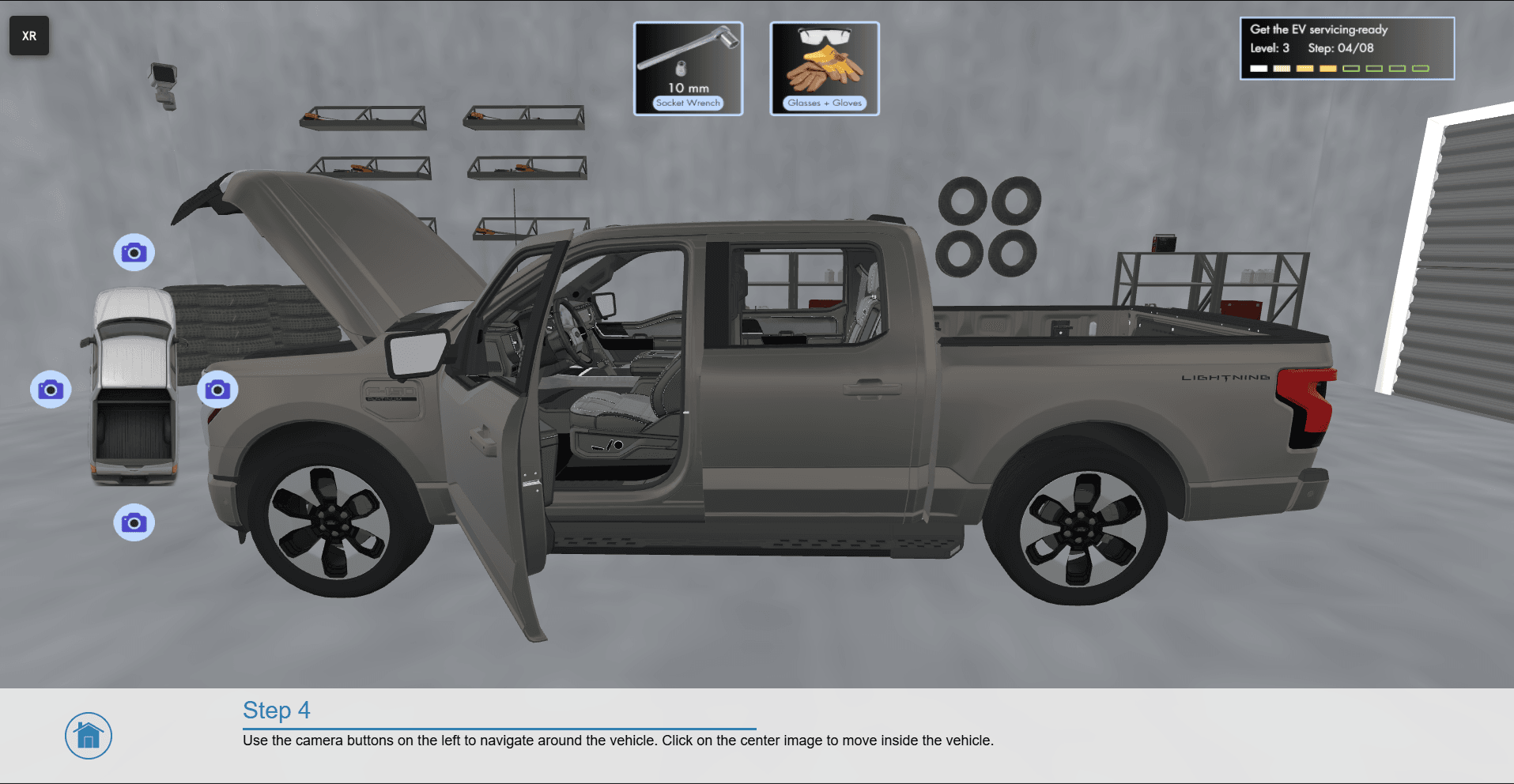
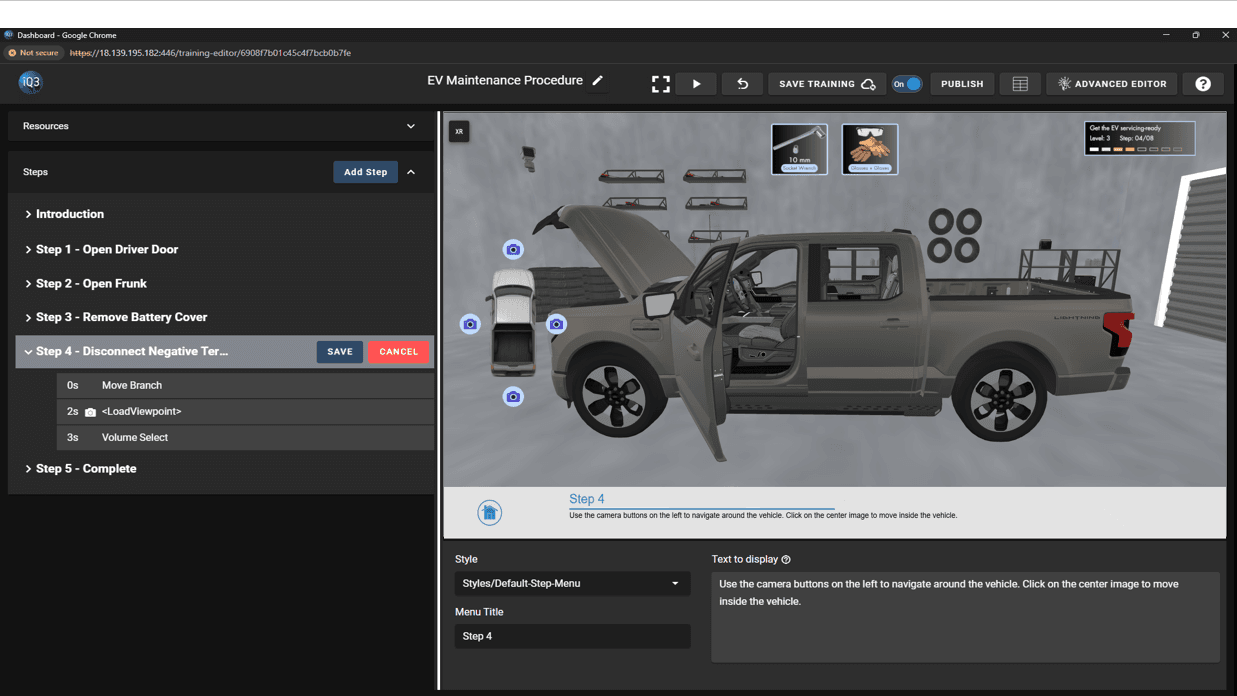
A UI element for the end-user that contains text and buttons. On PCs, tablets, and mobile devices, the Step Menu is displayed on the bottom of the user’s screen. On headsets (HMDs), the Step Menu is positioned in the 3D virtual environment as defined by the author.
The color of the Step Menu, text, and icons, as well as which icons are used, are controlled via the assigned Style. Icon selection can be customized as part of the Step Menu action. The position of the Step Menu in the 3D virtual environment is controlled by the Step Menu Frame as defined by the author when creating a State.
Properties #
Start Time
The time (in seconds) when the action will activate.
The Start Time is relative to the timeline in which the action occurs (not the absolute time from when the experience starts).
Style
Controls the color of the Step Menu, text, and icons, as well as which icons are used.
Styles are created and defined under Resources.
Menu Title (optional)
The title to be displayed.
Menu Text
The main body of text to be displayed.
Button
Buttons are interactive elements in the Step Menu that allow users to navigate to different parts of the experience (such as the next step, or Home).
The button icon can be selected from preset options and is completely arbitrary (i.e. the icon choice doesn’t impact the functionality).
Buttons can be removed from the Step Menu by leaving the Button Name and the Icon empty.