iQ3Connect Training Features #
| User Interface, Menus, and Navigation |
| Add Action Button | Adds a clickable button for navigation or event triggering, with customizable behavior, position, color, and font. |
| Add Text Box | Displays text information to the user, with customizable behavior, position, color, and font. |
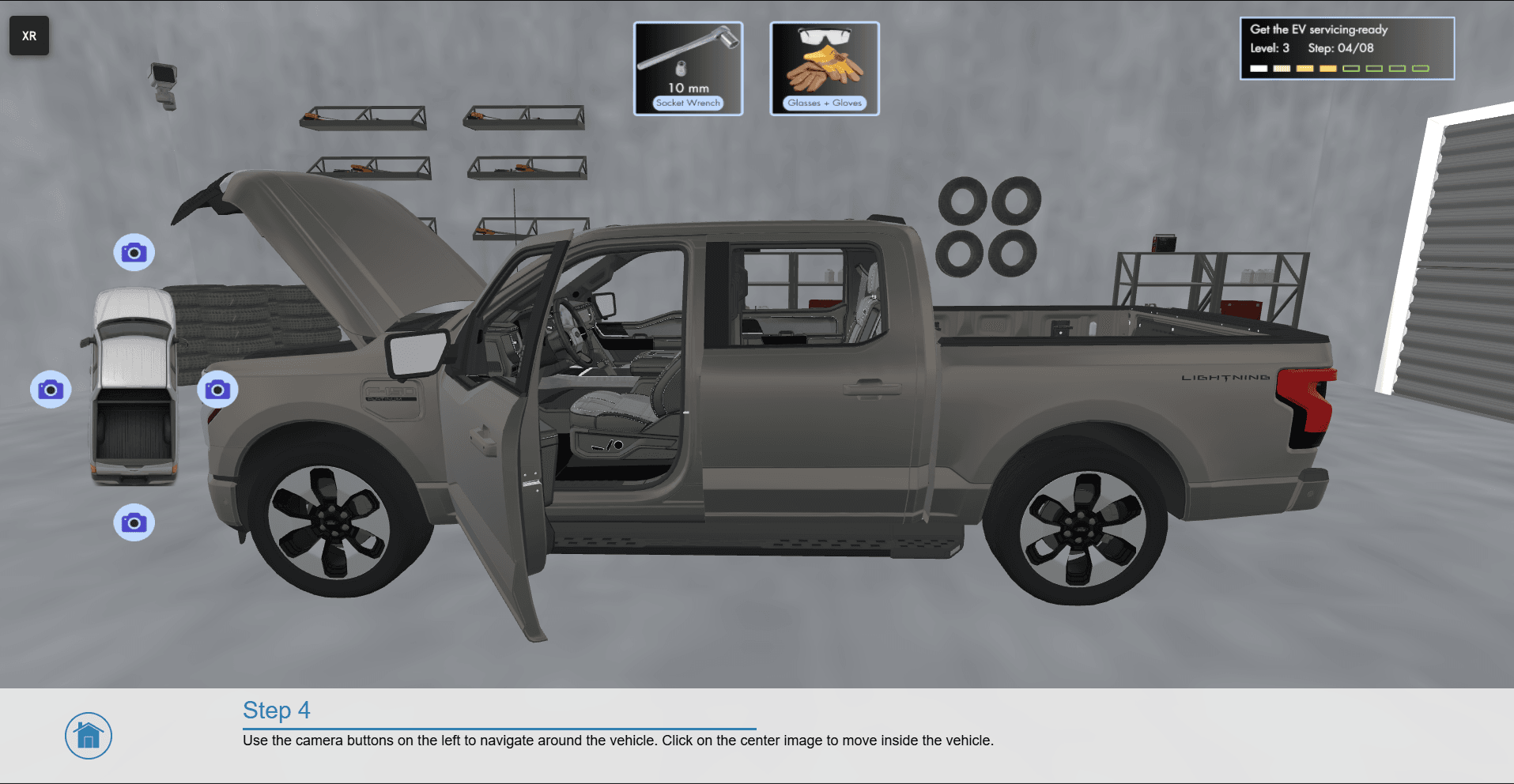
| Add Step Menu | Displays an integrated interface for text display and interactive buttons, with customizable behavior, position, color, and font. Often used as the main end-user interface for immerisive experiences. |
| Add Menu | Displays a pop-up interface for text, images, and buttons, with customizable color and font. Often used for displaying splash screens, chapter selection, and multi-choice questions. |
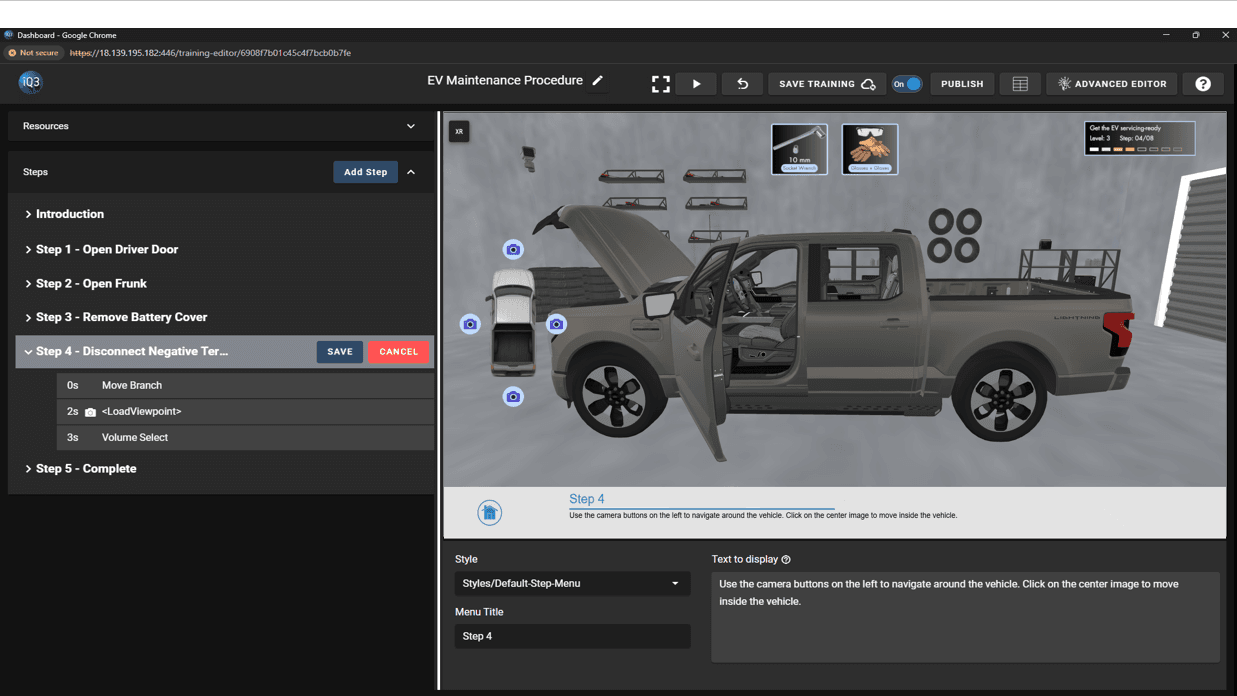
| Load Step | Initiates a step within an experience. A step is a self-contained unit in an experience consisting of the 3D scene (state) and a collection of actions (timeline) that control the behavior of that scene. |
| Load State | Loads a State, which defines the positions, orientations, and properties of 2D and 3D objects within the virtual environment. |
| Load Timeline | Initiates a timeline, a collection of actions that control the training experience (animations, interactions, triggers, etc.) |

| Camera |
| Load Viewpoint | Loads a designated viewpoint, moving the end user to a defined camera position and orientation. |
| Wayfinding | Displays a visual path to a defined location. Used to help the user self-navigate to the intended location. Optionally, can also be used to trigger events. |

| Text and Audio |
| Play Audio | Plays an audio file. |

| Object Modifications |
| Highlight Enabled | Highlights selected objects with a bright green color to make them clearly visible to users. |
| Highlight Disabled | Removes highlighting from selected objects. |
| Visibility Enabled | Makes the defined object(s) visible. |
| Visibility Disabled | Hides (makes invisible) the defined object(s). |
| Transparency Enabled | Adds transparency of the defined object(s). |
| Transparency Disabled | Removes the transparency from the defined object(s), making that object opaque. |
| Flash | Creates a flashing effect on selected objects to attract the user’s attention. Flashing can be done with highlighting, visibility or transparency. |

| Object Movement and Animations |
| Note on the difference between Move Actions, Animations, and Animation GLB. – Move Actions reposition an object to a target location. The system automatically moves the object there from its current position. – Animations move an object along a predefined path with specific rotations and timing as set by the author. – Animation GLB refers to animations that are embedded inside, and imported with, a GLB file, rather than being created directly within iQ3Connect. |
| Move Volume | Moves a selected volume to a defined position either instantly, or animated over time. |
| Move Model | Moves a selected model to a defined position either instantly, or animated over time. |
| Move Branch | Moves a selected model tree branch to a defined position either instantly, or animated over time. |
| Move Group | Moves a selected group to a defined position either instantly, or animated over time. |
| Reset Models | Resets the designated model(s) to its original configuration and resets its position back to the origin. |
| Animation Play | Plays an animation that has been created in the Training Resources. |
| Animation Pause | Pauses an animation that is currently playing, freezing that object in place. |
| Animation Stop | Stops the animation that is currently playing and instantly completes it – moving the animated object to the end point of the animation. |
| Animation GLB | Play, pause, or stop an animation that is embedded in a .glb file. |

| Media Screen Controls (Images, Videos, PDFs) |
| Show | Show (or hide) a media screen (image, video, or pdf). |
| Play | Play (or stop) a video. |
| Current Time | Sets a video to a specific time in the video clip. |
| Change Page | Display a specific page of a PDF document. |
| Focus | Centers a media screen in the user’s view by moving the camera, without changing the media position. |

| Triggers |
| Object Proximity | Triggers a timeline when two objects come within a specified distance. |
| Volume Select | Triggers a timeline when the user selects a designated volume of a 3D model. |
| Branch Select | Triggers a timeline when the user selects a designated branch of a 3D model. |
| Group Select | Triggers a timeline when the user selects a designated group within a 3D model. |
| Model Select | Triggers a timeline when the user selects a designated 3D model. |
| Media Screen Select | Triggers a timeline when the user selects a designated multimedia object such as an image, video, or document. |
| Wayfinding | Triggers a timeline when the user comes within a specified distance of a object. Optionally, a visible path can be shown to guide the user to that location |

| User Actions |
| Move Objects | Allows users to move permitted objects and defines which objects can or cannot be moved. |
| Text input | Prompts the user to input alphanumeric text and captures the resulting input. |

| Logic, Variables, and Time |
| Logic, Variables, and Time | A customized script created by the author, used to implement functionality and features that aren’t readily available in the list of actions. |
| Set Variable | Creates or updates a variable by assigning any alphanumeric value. Can also be used to capture the current time for use in tracking time durations. |
| Change Variable | Changes the value of a variable by a predefined operation (increment, decrement, multiply, or divide). Often used as a counter. |
| If-Then-Else Statement | Checks a variable against a condition and runs the THEN statement if the condition is true, and the ELSE statement if the condition is false. The THEN/ELSE statements can be defines as any action in this action list. |
| External Signal Receiver | Receives external data and checks it against an If-Then-Else statement. Can be used for logical control or even just to display the incoming data if it exists. |
| Track Time | Tracks how long a user takes to complete all the actions within the same step/timeline. |
| Get Time Duration | Tracks the time duration between 2 manually defined points. Provides more flexibility in tracking time duration compared to the Track Time action. |

| Augmented Reality |
| Align with Physical Space | Prompts users to align the virtual scene with their physical space using two points, a marker, or surface placement in AR mode. |

| Explode Feature |
| Explode Model | Creates an exploded view separating model components for easier visualization of individual parts. |
| Explode Scene | Creates an exploded view separating models in the scene, without separating individual parts within each model. |

| Miscellaneous |
| Scene Transformation | Scene transformation adjusts the position, orientation, and scale of the entire scene. This includes all 3D and 2D objects that make up the scene. |
| Select One Option | Displays a list of options for users to choose from. |
| No Operation | A placeholder action that has no effect. Used for creating dummy timelines or within If/Then/Else statements to do nothing. |
| Prune | Ends all timelines and actions that match the designated className(s). |
| Meeting Configurations | Changes virtual workspace settings, allowing any configuration available in Workspace Settings to be updated. |
| Update Menu Actions | Changes end-user capabilities, controlling features and options available in the XR menu. |
| Workspace Termination | The Workspace Termination action will immediately end the experience for the end user, providing a clean exit path. |