User Interface #
The iQ3Connect Training Editor provides an intuitive and structured user interface designed to simplify the creation of immersive training experiences. The editor is organized into several key components that help authors manage assets, configure interactions, and structure the training workflow efficiently.
The interface is composed of 5 major elements:
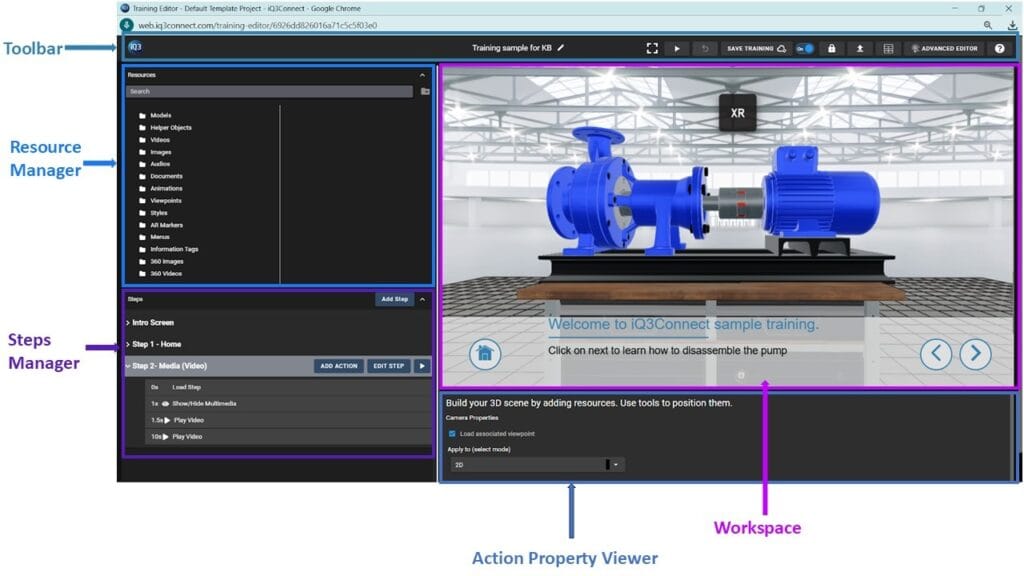
1.Toolbar: The Toolbar provides quick access to essential controls used to manage the training module.
2. Workspace: The Workspace is a 3D virtual environment for viewing and interacting with 2D and 3D assets, creating the 3D scene, authoring training content and previewing the training module from an end-user perspective.
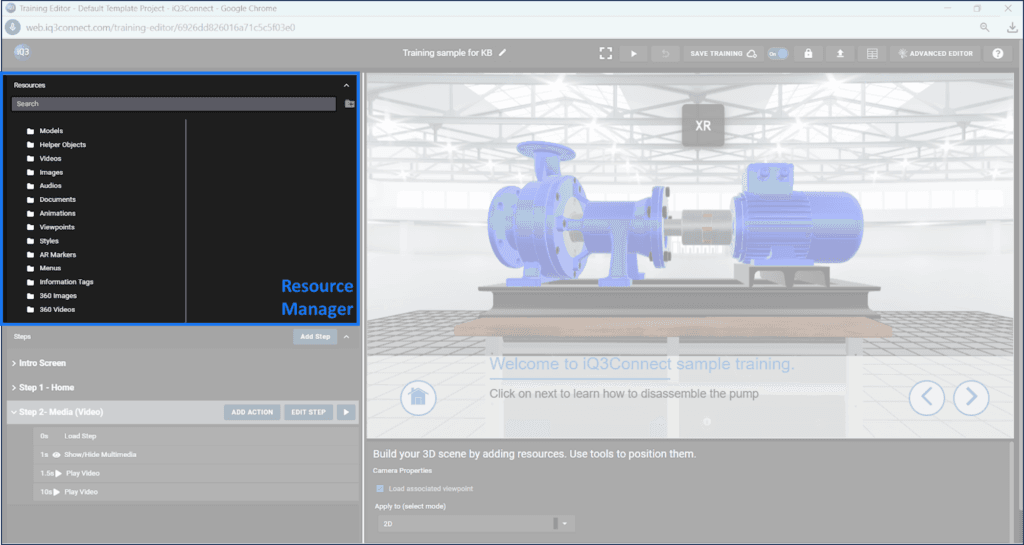
3. Resource Manager: The Resource Manager is used to add, organize, and manage 2D and 3D assets such as models, media files, and other resources used in the training.
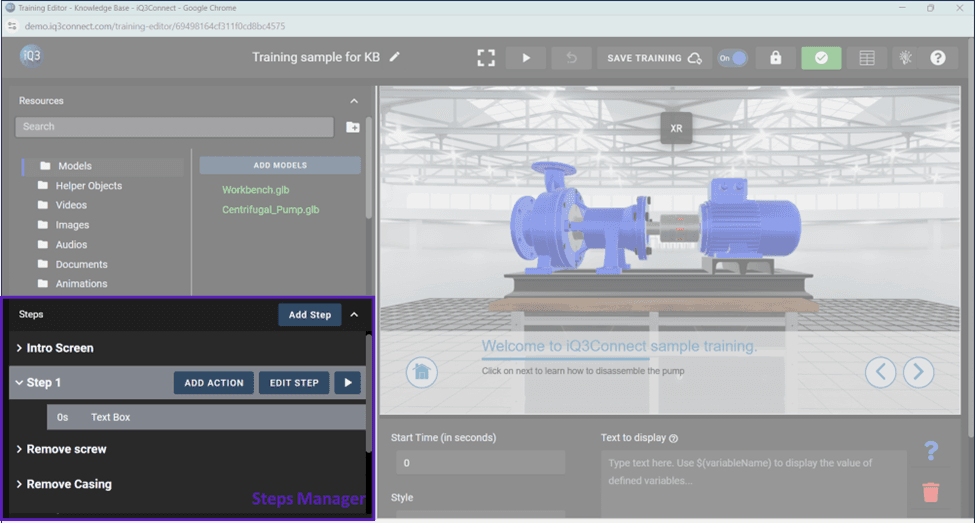
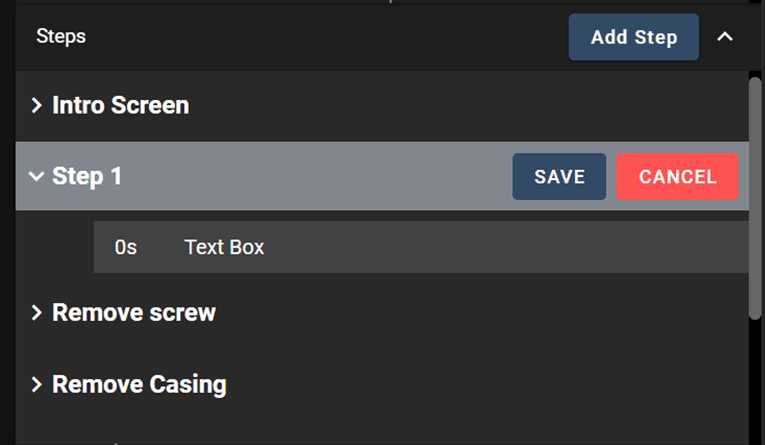
4. Step Manager: The Step Manager is used to create and manage the individual training steps that determine the sequence and workflow of the training module.
5. Action Property Viewer: The Action Property Viewer is used to view and edit the properties of the selected Action.
1. Toolbar #
The Toolbar is located at the top of the interface and provides tools to manage the Training Module. The Toolbar acts as the primary control center, enabling users to quickly perform essential actions while creating or editing training content.

It allows users to:
1.Training Module Name: edit the name by clicking on the adjacent pencil icon.
2. Show Fullscreen: Expands the Workspace to fullscreen. Hit the Escape key to return to a normal view.
3. Play Training: Preview the training from the end-users perspective.
4. Previous Revisions: Recover previous versions of the training.
5. Save Training: Saves the current progress and changes made to the training module.
6. Autosave: Automatically saves changes at regular intervals to prevent data loss; the toggle can be turned off to allow only manual saving instead.
7. Protect: Copies the current training to create a read-only version. Locks all associated resources (preventing them from being overwritten or deleted).
8. Publish Training: Creates a unique URL link to the Training Module which can be shared for deployment to end-users.
9. Editable Text Table: Displays all text within the Training Module in a text table that can be edited.
10. Advanced Editor: Opens the advanced editing interface with additional tools and capabilities. Once a training is opened in the Advanced Editor, it cannot be used in the Standard Editor.
11. Help: Provides access to documentation, guides, and support resources for using the platform.
2. Workspace #
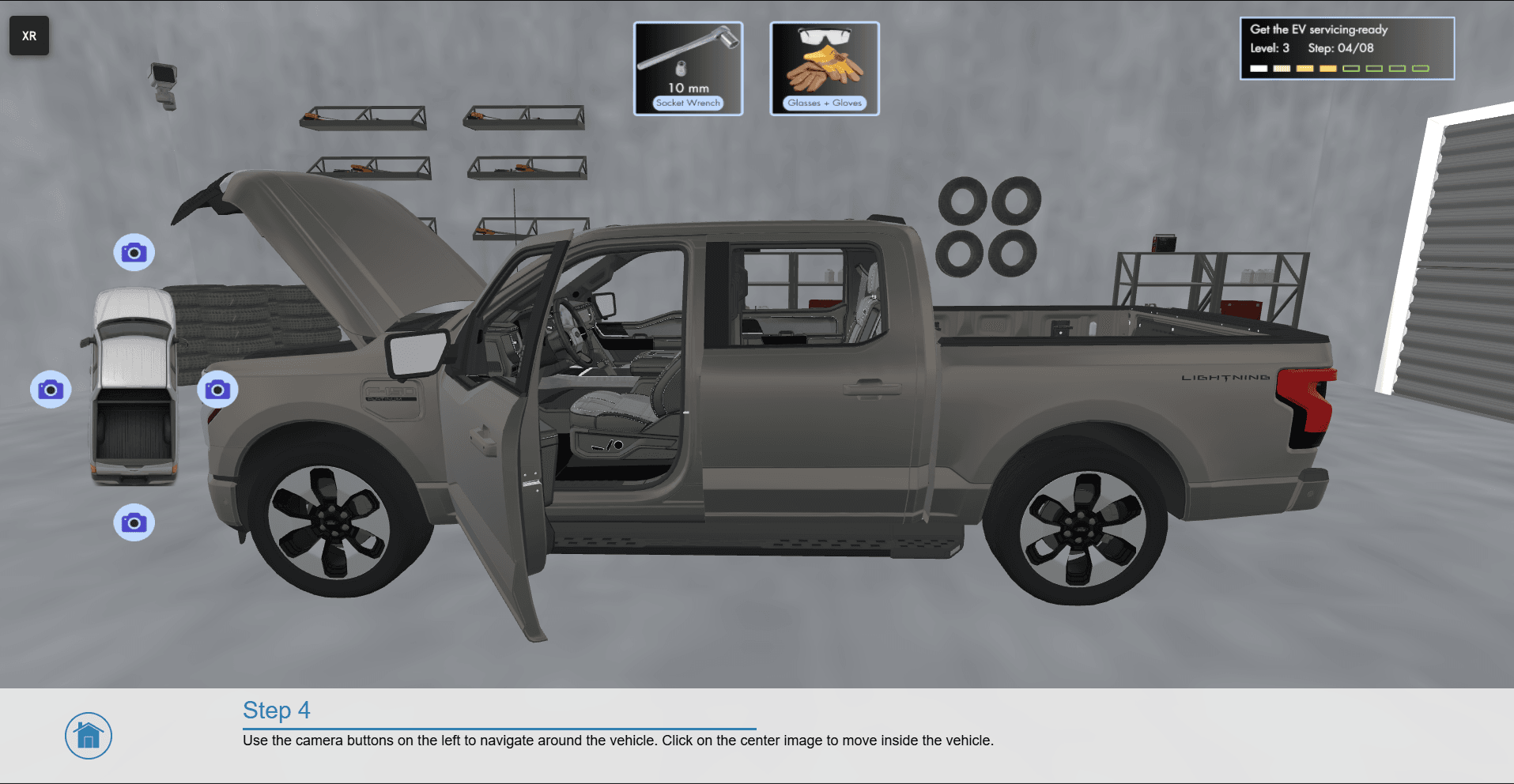
The Workspace is a 3D virtual environment for viewing and interacting with 2D and 3D assets, creating the 3D scene, authoring training content and previewing the training module from an end-user perspective.
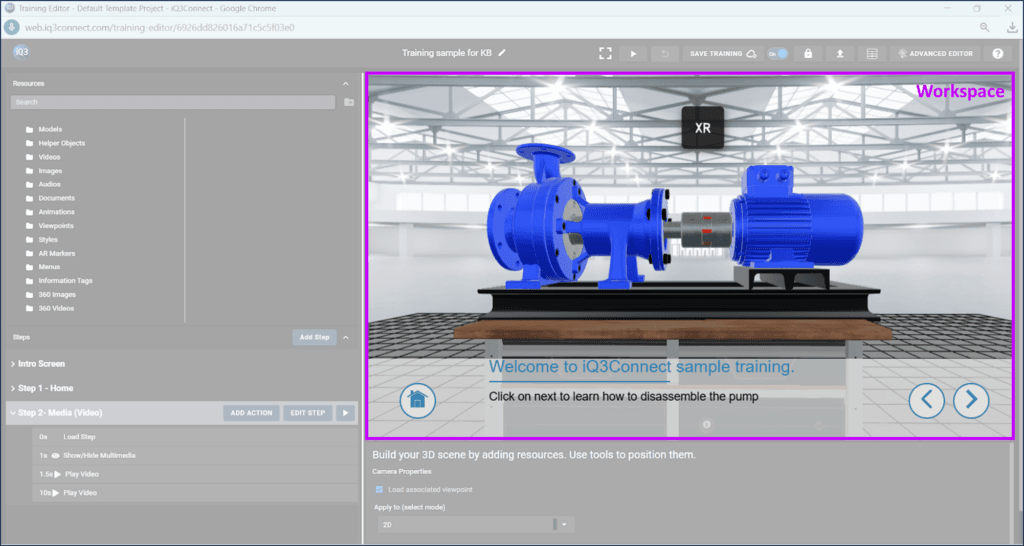
In this area users can:
- Setup the virtual 3D scene and view and manipulate 2D and 3D objects
- Visually author animations, training steps, and actions
- Preview the training experience from the end-user’s perspective
The workspace also supports visualization and interaction in immersive mode (AR/VR) if the Training Editor is opened with an XR compatible device.
3. Resource Manager #
The Resource Manager is used to add, manage, and delete resources (i.e. assets) in the Training Module. 2D and 3D assets such as models, videos, images, audio files, PDF documents, and information tags can be imported directly from the Project in which the training was created. Other resources such as animations, viewpoints, and styles can be created directly in the Resource Manager.
4. Step Manager #
The Step Manager is used to add, edit, manage and delete Steps – the core building block of Training Modules. The Step Manager is also where Actions are added to the Steps.
#
5. Action Property Viewer #
The Action Property Viewer is where the properties of an Action can be viewed and edited.
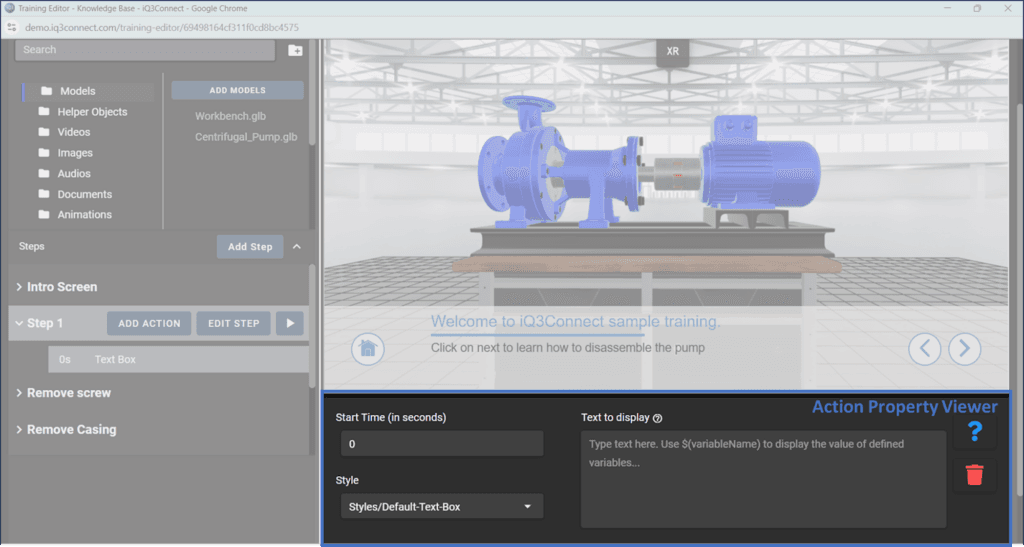
Information in the Action Property Viewer is displayed only when an Action is selected from the Steps Manager, allowing users to manage and update the behavior of that specific action.
Advanced Editor #
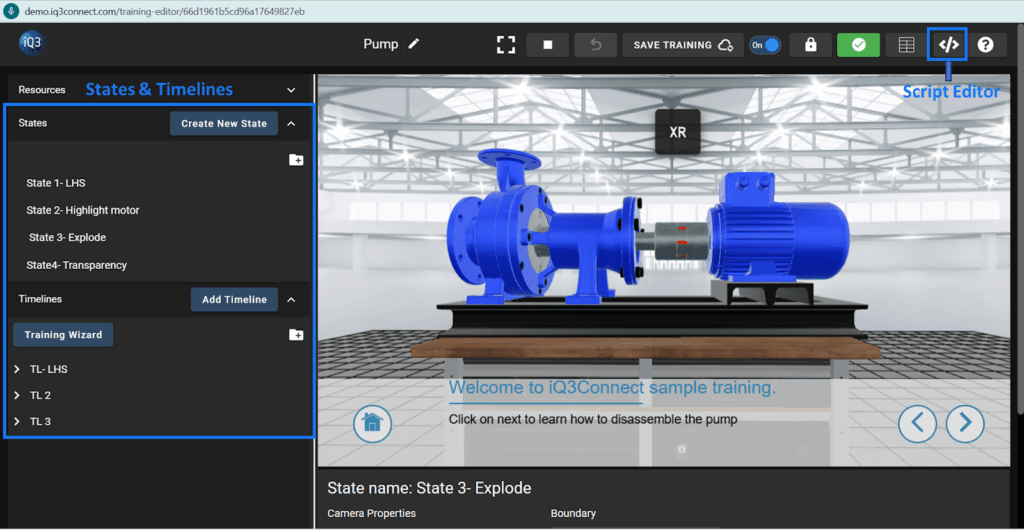
The Advanced Editor provides additional tools and controls for creating more complex and customized training experiences. The main changes in the Advanced Editor, compared to the Standard Editor, are:
1. Steps are replaced by their 2 constituent components: States and Timelines
2. The Script Editor is made available