View Categories

< 1 min read

Select One Option #

Description #

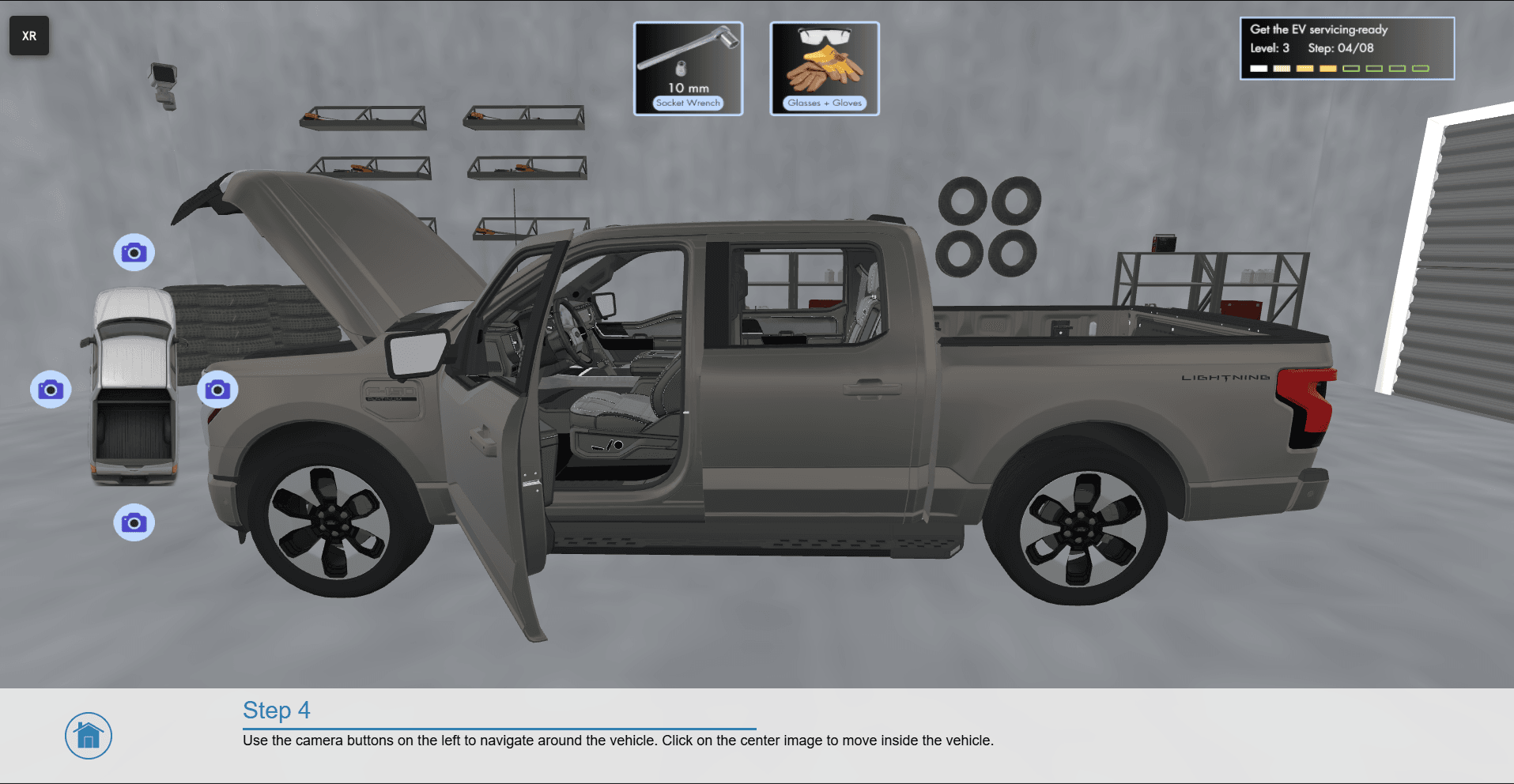
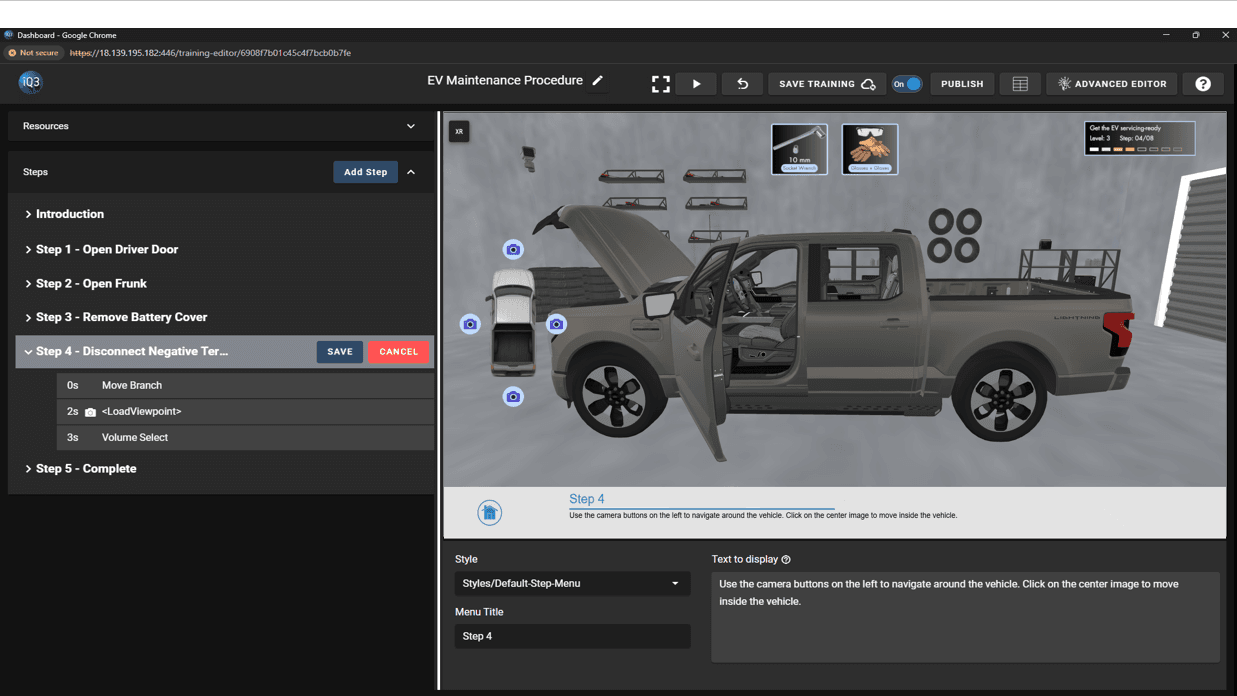
The Select One Option action shows the user a list of options from which they can select. This is often used when many possible options exist, such as allowing users to navigate to any step in a training experience.

  #

Properties #

Start Time

The time (in seconds) when the action will activate.

The Start Time is relative to the timeline in which the action occurs (not the absolute time from when the experience starts).


Cancel Action

The timeline to load if the user closes the Select One Option menu without making a selection.


Heading

The text that appears at the top of the menu (i.e. the menu title or heading).


Add New

Click this button to add a new menu item to the Select One Option menu.


Text

The text to be displayed on the menu item.


Timeline(s)

The timeline(s) to be loaded when the user selects this menu item.


Icon

Form Submitted!

Thanks for submitting the form. An iQ3Connect representative will be reaching out to you shortly. In the meantime, please feel free to review some of our resources below.

Icon

Form Submitted!

Thanks for submitting the form. An iQ3Connect representative will be reaching out to you shortly. In the meantime, please feel free to review some of our resources below.

Icon

Form Submitted!

Thanks for submitting the form. An iQ3Connect representative will be reaching out to you shortly. In the meantime, please feel free to review some of our resources below.

Icon

Form Submitted!

Thanks for submitting the form. An iQ3Connect representative will be reaching out to you shortly. In the meantime, please feel free to review some of our resources below.

Icon

Related resources

Icon

Related resources