Helper Objects #
Helper Objects are simple 2D and 3D shapes – such as planes, boxes, and arrows – that can be instantly created and added to training modules. They are often used for visual callouts, instructional cues, and interactive elements.
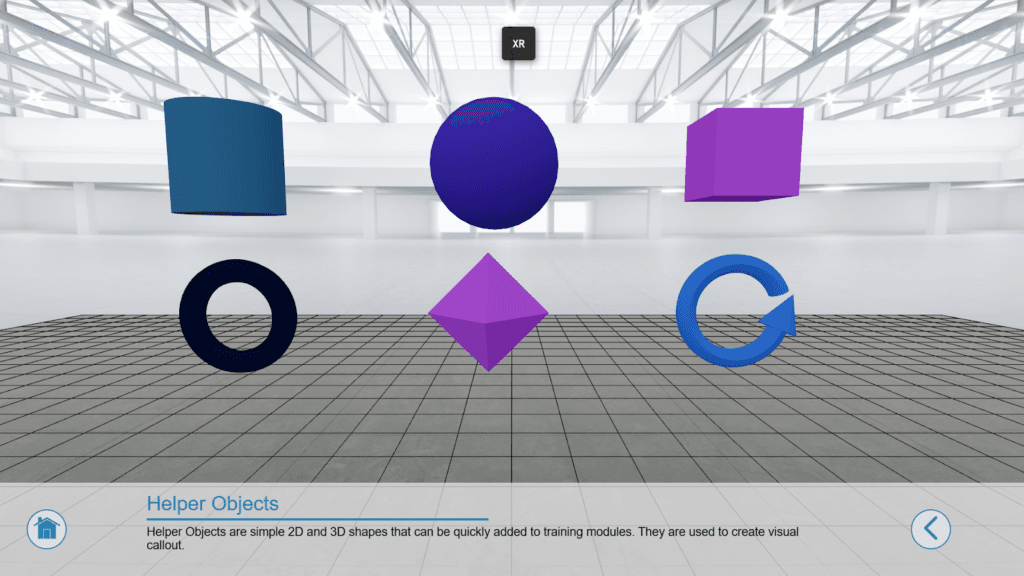
#
How to Add Helper Objects #
Helper Objects are built directly into the editor, so you can add them instantly without uploading any external 3D models. This makes it quick and easy to place simple visual elements in your training modules.
You can access Helper Objects in several ways:
- Create new helper objects from the 2D Toolbar or XR Menu
- Use existing helper objects via the Resource Manager
Creating New Helper Objects
Access Helper Objects from 2D Toolbar:
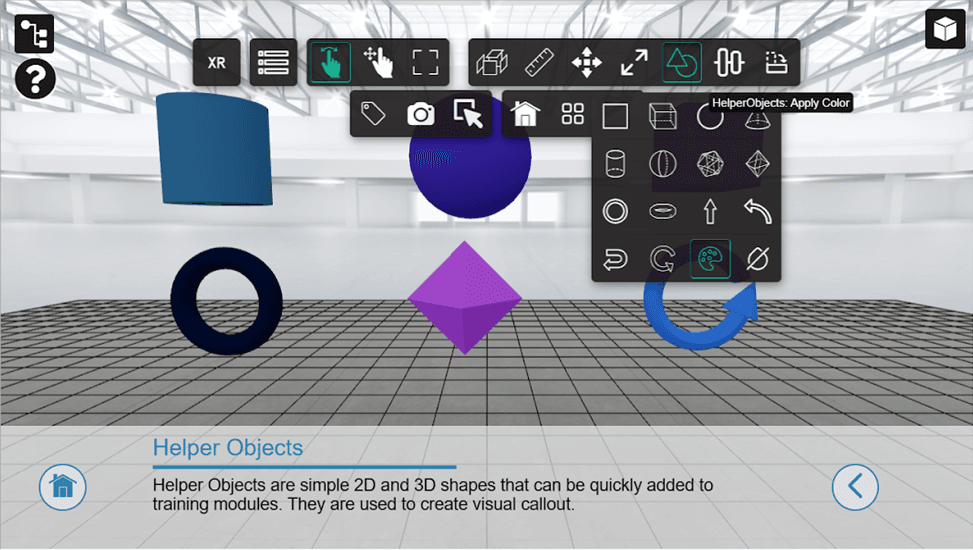
Access Helper Objects from the XR Menu:
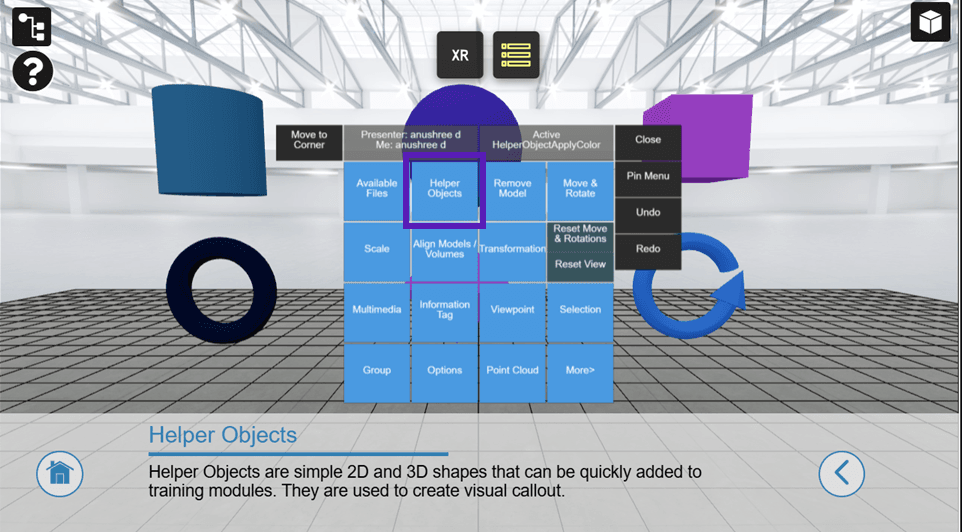
- Select the type of object you want to add, such as a plane, box, sphere, arrow, etc and it will be added to the workspace in front of the camera.
- Click to place the object in the scene.
- After adding a Helper Object, you can move, rotate, scale, and customize its color to fit your training requirements.
Use Existing Helper Objects
When a Step (or State) is saved and includes Helper Objects, those Helper Objects are saved independently as Resources > Helper Objects. These saved Helper Objects can be loaded into the Workspace as with any other 2D and 3D resource.
From Resource Manager

- Open the Resources panel.
- Navigate to Helper Objects.
- Double click the object to load it into the workspace.
Customizing Helper Objects #
Once added to the scene, Helper Objects can be easily adjusted to fit your training needs. Authors can:
- Move, rotate, and scale them within the workspace
- Change colors using the built-in color picker, or enter the exact HEX color value.
- Adjust transparency using the standard transparency tool
Animations and Interactivity #
Helper Objects work just like every other XR model. This means that in addition to the above, they can:
- Be animated
- Used as interactive elements to trigger events
- Highlight and/or flash
In short: Helper Objects provide a fast and flexible way to add visual guidance and simple 3D elements to your training experiences without needing complex 3D modeling.